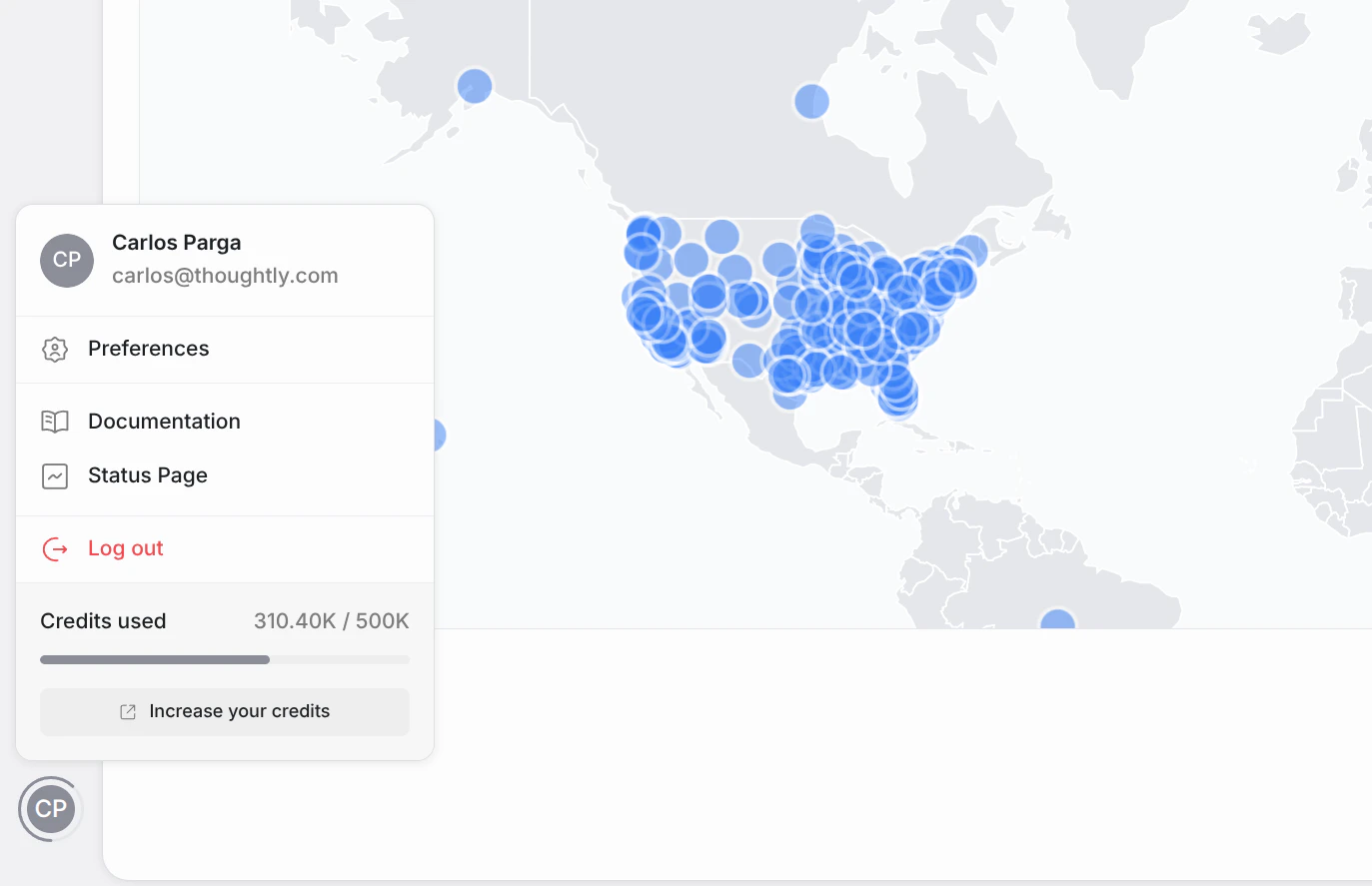
The User Menu provides quick access to your account settings and helpful resources. Click your user avatar in the navigation to open it.
What you’ll see
| Item | Description |
|---|
| User Info | Your name and email displayed at the top. |
| Preferences | Opens the Profile Modal to edit your personal details. |
| Product Roadmap | External link to the Thoughtly product roadmap. |
| Help Center | External link to this documentation site. |
| Community | External link to the Thoughtly Skool Community. |
| Status Page | External link to the platform status page. |
| Remaining Credits | Your current credit balance with a visual progress bar. |
| Top up your balance | Navigates to Settings → Subscription to purchase additional credits. |
Profile Modal
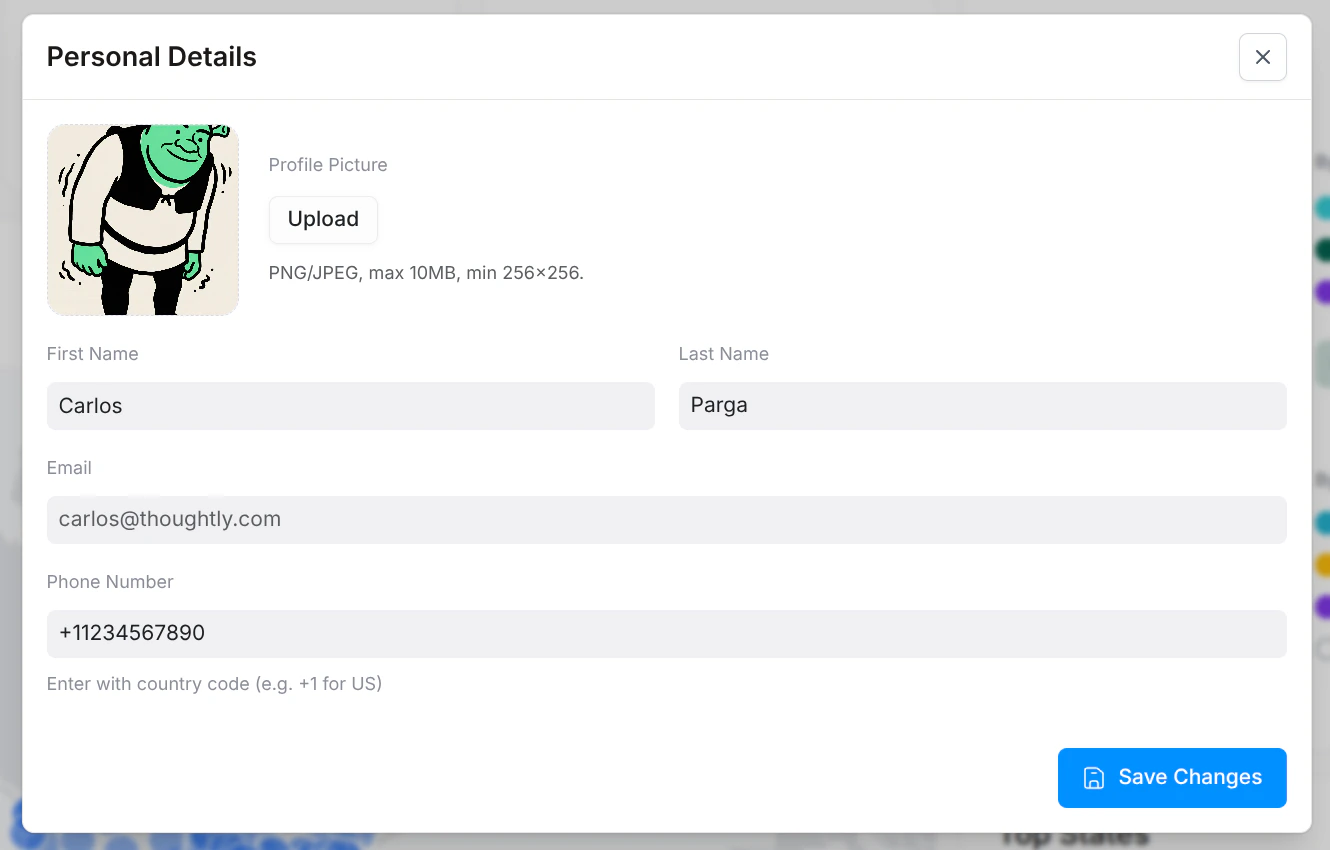
Clicking Preferences opens a modal where you can manage your personal profile. This is a lightweight overlay — it does not navigate to a new page.
| Field | Type | Description |
|---|
| Profile Picture | Image upload | Your profile picture (JPG, PNG, or GIF). |
| First Name | Text input | Your first name (e.g., “Jane”). |
| Last Name | Text input | Your last name (e.g., “Doe”). |
| Email | Read-only | Your login email address. Cannot be changed. |
| Phone Number | Phone input | Used for account verification and “Call Me” testing. Include country code (e.g., +1 for US). |
User authentication and security (password changes, SSO, etc.) are handled by Wristband and are not part of the Thoughtly settings interface.
See also